

容器操作基础命令
容器生命周期
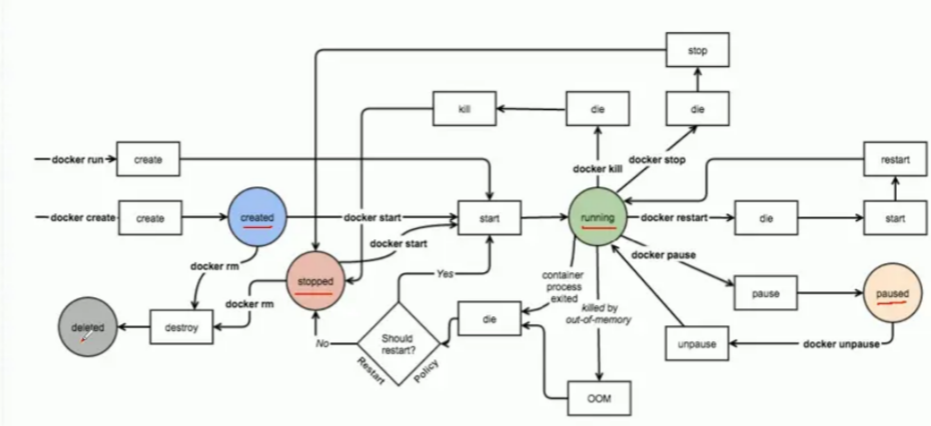
[root@ubuntu1804 ~]#docker container

Usage: docker container COMMAND

Manage containers

Commands:
attach Attach local standard input, output, and error streams to a running
container
commit Create a new image from a container's changes
cp Copy files/folders between a container and the local filesystem
create Create a new container
diff Inspect changes to files or directories on a container's
filesystem
exec Run a command in a running container
export Export a container's filesystem as a tar archive
inspect Display detailed information on one or more containers
kill Kill one or more running containers
logs Fetch the logs of a container
ls List containers
pause Pause all processes within one or more containers
port List port mappings or a specific mapping for the container
prune Remove all stopped containers
rename Rename a container
restart Restart one or more containers
rm Remove one or more containers
run Run a command in a new container
start Start one or more stopped containers
stats Display a live stream of container(s) resource usage statistics
stop Stop one or more running containers
top Display the running processes of a container
unpause Unpause all processes within one or more containers
update Update configuration of one or more containers
wait Block until one or more containers stop, then print their exit
codes
Run 'docker container COMMAND --help' for more information on a command.
启动容器
docker run 可以启动容器,进入到容器,并随机生成容器ID和名称
启动第一个容器
范例: 运行docker 的 hello world
[root@centos8 ~]# docker run hello-world
Unable to find image 'hello-world:latest' locally
latest: Pulling from library/hello-world
1b930d010525: Pull complete
Digest: sha256:9572f7cdcee8591948c2963463447a53466950b3fc15a247fcad1917ca215a2f
Status: Downloaded newer image for hello-world:latest

Hello from Docker!
This message shows that your installation appears to be working correctly.

To generate this message, Docker took the following steps:
1. The Docker client contacted the Docker daemon.
2. The Docker daemon pulled the "hello-world" image from the Docker Hub.(amd64)
3. The Docker daemon created a new container from that image which runs the executable that produces the output you are currently reading.
4. The Docker daemon streamed that output to the Docker client, which sent it、to your terminal.
To try something more ambitious, you can run an Ubuntu container with:
$ docker run -it ubuntu bash

Share images, automate workflows, and more with a free Docker ID:
https://hub.docker.com/

For more examples and ideas, visit:
https://docs.docker.com/get-started/

[root@centos8 ~]#docker images
REPOSITORY TAG IMAGE ID CREATED
SIZE
hello-world latest fce289e99eb9 12 months ago
1.84kB

[root@centos8 ~]#docker ps -a
CONTAINER ID IMAGE COMMAND CREATED
STATUS PORTS NAMES
7f53a2a74edc hello-world "/hello" 21 seconds ago
Exited (0) 19 seconds ago 	nifty_yalow
启动容器的流程
开始
本地查找:Docker 会在本地宿主机寻找指定的镜像。
判断 A:本机是否有这个镜像?
- 是 (Y):直接跳转至第 7 步。
- 否 (N):进入下一步,准备下载。
远程请求:去 Docker Hub(或其他配置的镜像仓库)寻找并下载。
判断 B:Docker Hub 是否可以找到?
- 是 (Y):执行下一步。
- 否 (N):返回错误,提示找不到镜像(流程结束)。
下载:将该镜像从远程仓库下载到本地。
运行:使用该镜像启动并运行容器。
启动容器用法
帮助: man docker-run
命令格式
docker run [选项] [镜像名] [shell命令] [参数]

#选项:
-i, --interactive Keep STDIN open even if not attached,通常和-t一起使用
-t, --tty 分配pseudo-TTY,通常和-i一起使用,注意对应的容器必须运行shell才支持进
入
-d, --detach Run container in background and print container ID,台后运行,
默认前台
--name string Assign a name to the container #取名可读性名字
--h, --hostname string Container host name #设置容器内部的主机名
--rm Automatically remove the container when it exits #自动销毁。
-p, --publish list Publish a container's port(s) to the host 	#精准映射 宿主机端口:容器端口
-P, --publish-all Publish all exposed ports to random ports #随机映射。把镜像声明的所有端口都映射到宿主机的随机高位端口上。
--dns list Set custom DNS servers  #手动指定容器使用的 DNS 服务器地址。
--entrypoint string Overwrite the default ENTRYPOINT of the image 	#覆盖入口。镜像制作时可能指定了启动后执行 python app.py,你可以强制改成运行 /bin/sh。
--restart policy #重启策略。比如 always(只要 Docker 活着,容器关了就重启)或 on-failure(只有报错才重启)。
--privileged Give extended privileges to container #特权模式。给容器接近于宿主机的权限。可以让容器直接访问宿主机的硬件(如网卡、硬盘分区)。
-e, --env=[] Set environment variables #直接设置环境变量
--env-file=[] Read in a line delimited file of environment variables #批量导入。通过一个文件来加载大量的变量配置。
[shell命令] [参数] #使用指定的命令和参数,替换容器默认的命令
--restart 可以指定四种不同的policy
| policy (策略) | 说明 (Description) |
|---|---|
| no | 默认策略。当容器退出时,不自动重启容器。 |
| on-failure[:max-retries] | 只有在容器以非零状态码(异常)退出时才重启。 可以选择性地限制 Docker 守护进程尝试重启的次数。 |
| always | 无论退出状态如何,始终重启容器。 指定此项后,Docker 会无限期地尝试重启。 容器在守护进程(daemon)启动时也会随之启动,无论容器当前状态如何。利用此项可以确保实现开机自动启动容器。 |
| unless-stopped | 无论退出状态如何,始终重启容器。 但如果容器在 Docker 守护进程重启前已经处于停止状态,则在守护进程启动时不会自动重启该容器。 |
如果 docker stop 停止容器后重启宿主机,always选项以外的其它选项的容器都不会随着宿主机启动而自动启动
注意: 容器启动后,如果容器内没有前台运行的进程,将自动退出停止
从容器内退出,并停止容器
exit
从容器内退出,且容器不停止
同时按三个键,ctrl+p+q
范例: 运行容器
#启动容器时会自动随机字符作为容器名
[root@ubuntu1804 ~]#docker run alpine
[root@ubuntu1804 ~]#docker ps -a
CONTAINER ID IMAGE COMMAND CREATED
STATUS PORTS NAMES
95967eaefd6a alpine "/bin/sh" 8 seconds ago
Exited (0) 6 seconds ago 		confident_elion
范例: 一次性运行容器中命令
#启动的容器在执行完shell命令就退出,用于测试
[root@ubuntu1804 ~]#docker run busybox echo "Hello wang"
Unable to find image 'busybox:latest' locally
latest: Pulling from library/busybox
91f30d776fb2: Pull complete
Digest: sha256:9ddee63a712cea977267342e8750ecbc60d3aab25f04ceacfa795e6fce341793
Status: Downloaded newer image for busybox:latest
Hello wang

[root@ubuntu1804 ~]#docker ps
CONTAINER ID IMAGE COMMAND CREATED
STATUS PORTS NAMES
[root@ubuntu1804 ~]#docker ps -a
CONTAINER ID IMAGE COMMAND CREATED
STATUS PORTS NAMES
7873aed1b5dd busybox "echo 'Hello wang'" 19 seconds ago
Exited (0) 18 seconds ago pedantic_varahamihira
范例: 指定容器名称
#注意每个容器的名称要唯一
[root@ubuntu1804 ~]#docker run --name a1 alpine
[root@ubuntu1804 ~]#docker ps -a
CONTAINER ID IMAGE COMMAND CREATED
STATUS PORTS NAMES
dd06368a4f56 alpine "/bin/sh" 2 minutes ago
Exited (0) 8 seconds ago 			a1
范例: 运行交互式容器并退出
[root@ubuntu1804 ~]#docker run -it docker.io/busybox sh
Unable to find image 'busybox:latest' locally
latest: Pulling from library/busybox
bdbbaa22dec6: Pull complete
Digest: sha256:6915be4043561d64e0ab0f8f098dc2ac48e077fe23f488ac24b665166898115a
Status: Downloaded newer image for busybox:latest
/ # exit
#用exit退出后容器也停止

[root@ubuntu1804 ~]#docker ps -l
CONTAINER ID IMAGE COMMAND CREATED
STATUS PORTS NAMES
cd8c2a7f39d5 busybox "sh" 8 seconds ago
Exited (0) 1 second ago vigorous_leakey

[root@ubuntu1804 ~]#docker run -it docker.io/busybox sh
Unable to find image 'busybox:latest' locally
latest: Pulling from library/busybox
bdbbaa22dec6: Pull complete
Digest: sha256:6915be4043561d64e0ab0f8f098dc2ac48e077fe23f488ac24b665166898115a
Status: Downloaded newer image for busybox:latest
/ #同时按三个键:ctrl+p+q

#用同时按三个键ctrl+p+q退出后容器不会停止
[root@ubuntu1804 ~]#docker ps -l
CONTAINER ID IMAGE COMMAND CREATED
STATUS PORTS NAMES
cd8c2a7f39d5 busybox "sh" 8 seconds ago
Up 10 seconds silly_villani
范例: 设置容器内的主机名
[root@ubuntu1804 ~]#docker run -it --name a1 -h a1.wang.org alpine
/ # hostname
a1.wang.org
/ # cat /etc/hosts
127.0.0.1 localhost
::1 localhost ip6-localhost ip6-loopback
fe00::0 ip6-localnet
ff00::0 ip6-mcastprefix
ff02::1 ip6-allnodes
ff02::2 ip6-allrouters
172.17.0.2 a1.wang.org a1
/# cat /etc/resolv.conf
# This file is managed by man:systemd-resolved(8). Do not edit.
#
# This is a dynamic resolv.conf file for connecting local clients directly to
# all known uplink DNS servers. This file lists all configured search domains.
#
# Third party programs must not access this file directly, but only through the
# symlink at /etc/resolv.conf. To manage man:resolv.conf(5) in a different way,
# replace this symlink by a static file or a different symlink.
#
# See man:systemd-resolved.service(8) for details about the supported modes of
# operation for /etc/resolv.conf.
nameserver 180.76.76.76
nameserver 223.6.6.6
search ayaka.cn wang.org
范例: 一次性运行容器,退出后立即删除,用于测试
[root@ubuntu1804 ~]#docker run --rm alpine cat /etc/issue
Welcome to Alpine Linux 3.11
Kernel \r on an \m (\l)
[root@ubuntu1804 ~]#docker ps -a
CONTAINER ID IMAGE COMMAND CREATED
STATUS PORTS NAMES
范例: 创建容器后直接进入并退出
退出两种方式:
- exit 容器也停止
- 按ctrl+p+q 容器不停止
#,执行exit退出后容器关闭
[root@ubuntu1804 ~]#docker run -it --name alpine2 alpine
/ # cat /etc/issue
Welcome to Alpine Linux 3.11
Kernel \r on an \m (\l)


# exit #退出容器,容器也停止运行
[root@ubuntu1804 ~]#docker ps -a
CONTAINER ID IMAGE COMMAND CREATED
STATUS PORTS NAMES
6d64f47a83e6 alpine "/bin/sh" 13 seconds ago
Exited (0) 6 seconds ago alpine2
edd2ac2690e6 alpine "/bin/sh" 52 seconds ago
Exited (0) 51 seconds ago alpine1
[root@ubuntu1804 ~]#docker run -it --name alpine3 alpine
#同时按ctrl+p+q 三个键退出后,容器不停止
/ # [root@ubuntu1804 ~]#docker ps -a
CONTAINER ID IMAGE COMMAND CREATED
STATUS PORTS NAMES
df428caf7128 alpine "/bin/sh" 8 seconds ago
Up 7 seconds alpine3
6d64f47a83e6 alpine "/bin/sh" 26 seconds ago
Exited (0) 20 seconds ago alpine2
edd2ac2690e6 alpine "/bin/sh" About a minute ago
Exited (0) About a minute ago alpine1
什么是守护式容器:
- 能够长期运行
- 无需交互式会话
- 适合运行应用程序和服务
范例: 启动前台守护式容器
[root@ubuntu1804 ~]#docker run nginx
Unable to find image 'nginx:latest' locally
latest: Pulling from library/nginx
6ec8c9369e08: Pull complete
d3cb09a117e5: Pull complete
7ef2f1459687: Pull complete
e4d1bf8c9482: Pull complete
795301d236d7: Pull complete
Digest: sha256:0e188877aa60537d1a1c6484b8c3929cfe09988145327ee47e8e91ddf6f76f5c
Status: Downloaded newer image for nginx:latest
/docker-entrypoint.sh: /docker-entrypoint.d/ is not empty, will attempt to
perform configuration
/docker-entrypoint.sh: Looking for shell scripts in /docker-entrypoint.d/
/docker-entrypoint.sh: Launching /docker-entrypoint.d/10-listen-on-ipv6-by-
default.sh
10-listen-on-ipv6-by-default.sh: Getting the checksum of
/etc/nginx/conf.d/default.conf
10-listen-on-ipv6-by-default.sh: Enabled listen on IPv6 in
/etc/nginx/conf.d/default.conf
/docker-entrypoint.sh: Launching /docker-entrypoint.d/20-envsubst-on-
templates.sh
/docker-entrypoint.sh: Configuration complete; ready for start up
172.17.0.1 - - [28/Jul/2020:13:09:19 +0000] "GET / HTTP/1.1" 200 612 "-"
"curl/7.58.0" "-"
172.17.0.4 - - [28/Jul/2020:13:12:49 +0000] "GET / HTTP/1.1" 200 612 "-" "Wget"
"-"

[root@ubuntu1804 ~]#docker run --rm --name b1 busybox wget -qO - 172.17.0.3
<!DOCTYPE html>
<html>
<head>
<title>Welcome to nginx!</title>
<style>
body {
width: 35em;
margin: 0 auto;
font-family: Tahoma, Verdana, Arial, sans-serif;
}
</style>
</head>
<body>
<h1>Welcome to nginx!</h1>
<p>If you see this page, the nginx web server is successfully installed and
working. Further configuration is required.</p>

<p>For online documentation and support please refer to
<a href="http://nginx.org/">nginx.org</a>.<br/>
Commercial support is available at
<a href="http://nginx.com/">nginx.com</a>.</p>

<p><em>Thank you for using nginx.</em></p>
</body>
</html>
范例: 启动后台守护式容器
[root@ubuntu1804 ~]#docker run -d nginx
888685a2487cf8150d264cb3086f78d0c3bddeb07b8ea9786aa3a564157a4cb8
[root@ubuntu1804 ~]#docker ps -l
CONTAINER ID IMAGE COMMAND CREATED
STATUS PORTS NAMES
888685a2487c nginx "/docker-entrypoint.…" 8 seconds ago
Up 6 seconds 80/tcp busy_goodall

#有些容器后台启动不会持续运行
[root@ubuntu1804 ~]#docker run -d --name alpine4 alpine
3a05bbf66dac8a6ac9829c876bdb5fcb70832bf4a2898d68f6979cd8e8c517cb
[root@ubuntu1804 ~]#docker ps -a
CONTAINER ID IMAGE COMMAND CREATED
STATUS PORTS NAMES
3a05bbf66dac alpine "/bin/sh" 3 seconds ago
Exited (0) 2 seconds ago alpine4
df428caf7128 alpine "/bin/sh" 30 seconds ago
Up 28 seconds alpine3
6d64f47a83e6 alpine "/bin/sh" 48 seconds ago
Exited (0) 41 seconds ago alpine2
edd2ac2690e6 alpine "/bin/sh" About a minute ago
Exited (0) About a minute ago alpine1
[root@ubuntu1804 ~]#docker run -td --name alpine5 alpine
868b33da850cfcc7db8b84150fb9c7686b577889f10425bb4c5e17f28cf68a29
[root@ubuntu1804 ~]#docker ps -a
CONTAINER ID IMAGE COMMAND CREATED
STATUS PORTS NAMES
868b33da850c alpine "/bin/sh" 2 seconds ago
Up 1 second alpine5
3a05bbf66dac alpine "/bin/sh" 23 seconds ago
Exited (0) 23 seconds ago alpine4
df428caf7128 alpine "/bin/sh" 50 seconds ago
Up 49 seconds alpine3
6d64f47a83e6 alpine "/bin/sh" About a minute ago
Exited (0) About a minute ago alpine2
edd2ac2690e6 alpine "/bin/sh" About a minute ago
Exited (0) About a minute ago alpine1
[root@ubuntu1804 ~]#
范例: 开机自动运行容器
#默认容器不会自动启动
[root@ubuntu1804 ~]#docker run -d --name nginx -p 80:80 nginx
bce473b8b1d2f728847cdc32b664cca1bd7578bf7bdac850b501e2e5557a718a
[root@ubuntu1804 ~]#docker ps
CONTAINER ID IMAGE COMMAND CREATED
STATUS PORTS NAMES
bce473b8b1d2 nginx "nginx -g 'daemon of…" 3 seconds ago
Up 2 seconds 0.0.0.0:80->80/tcp

[root@ubuntu1804 ~]#reboot

[root@ubuntu1804 ~]#docker ps
CONTAINER ID IMAGE COMMAND CREATED STATUS PORTS
NAMES

#设置容器总是运行
[root@ubuntu1804 ~]#docker run -d --name nginx --restart=always -p 80:80 nginx
[root@ubuntu1804 ~]#reboot
[root@ubuntu1804 ~]#docker ps
CONTAINER ID IMAGE COMMAND CREATED STATUS PORTS
NAMES
dbdba90076e1 nginx"nginx -g 'daemon of…" About a minute agoUp 49
seconds0.0.0.0:80->80/tcp nginx
--privileged 选项
大约在0.6版,--privileged 选项被引入docker。使用该参数,container内的root拥有真正的root权限。
否则,container内的root只是外部的一个普通用户权限。privileged启动的容器,可以看到很多host上
的设备,并且可以执行mount。甚至允许你在docker容器中启动docker容器。
范例: 使用--privileged 让容器获取 root 权限
[root@centos8 ~]#podman run -it centos
[root@382ab09932a7 /]#cat /etc/redhat-release
CentOS Linux release 8.1.1911 (Core)
[root@382ab09932a7 /]# lsblk
NAME MAJ:MIN RM SIZE RO TYPE MOUNTPOINT
sda 8:0 0 200G 0 disk
|-sda1 8:1 0 1G 0 part
|-sda2 8:2 0 100G 0 part
|-sda3 8:3 0 50G 0 part
|-sda4 8:4 0 1K 0 part
`-sda5 8:5 0 2G 0 part [SWAP]
sr0 11:0 1 7G 0 rom
[root@382ab09932a7 /]# mount /dev/sda3 /mnt
mount: /mnt: permission denied.
[root@382ab09932a7 /]# exit
exit

#利用--privileged 选项运行容器
[root@centos8 ~]#podman run -it --privileged centos
#可以看到宿主机的设备
[root@a6391a8f82e3 /]# lsblk
NAME MAJ:MIN RM SIZE RO TYPE MOUNTPOINT
sda 8:0 0 200G 0 disk
|-sda1 8:1 0 1G 0 part
|-sda2 8:2 0 100G 0 part
|-sda3 8:3 0 50G 0 part
|-sda4 8:4 0 1K 0 part
`-sda5 8:5 0 2G 0 part [SWAP]
sr0 11:0 1 7G 0 rom
[root@a6391a8f82e3 /]# df
Filesystem 1K-blocks Used Available Use% Mounted on
overlay 104806400 2754832 102051568 3% /
tmpfs 65536 0 65536 0% /dev
tmpfs 408092 5892 402200 2% /etc/hosts
shm 64000 0 64000 0% /dev/shm
tmpfs 408092 0 408092 0% /sys/fs/cgroup

[root@a6391a8f82e3 /]# mount /dev/sda3 /mnt
[root@a6391a8f82e3 /]# df
Filesystem 1K-blocks Used Available Use% Mounted on
overlay 104806400 2754632 102051768 3% /
tmpfs 65536 0 65536 0% /dev
tmpfs 408092 5892 402200 2% /etc/hosts
shm 64000 0 64000 0% /dev/shm
tmpfs 408092 0 408092 0% /sys/fs/cgroup
/dev/sda3 52403200 619068 51784132 2% /mnt
[root@a6391a8f82e3 /]# touch /mnt/containter.txt
[root@a6391a8f82e3 /]# echo container data > /mnt/containter.txt
[root@a6391a8f82e3 /]# cat /mnt/containter.txt
container data
[root@a6391a8f82e3 /]#

#在宿主机查看是否生成文件
[root@centos8 ~]#lsblk
NAME MAJ:MIN RM SIZE RO TYPE MOUNTPOINT
sda 8:0 0 200G 0 disk
├─sda1 8:1 0 1G 0 part /boot
├─sda2 8:2 0 100G 0 part /
├─sda3 8:3 0 50G 0 part /data
├─sda4 8:4 0 1K 0 part
└─sda5 8:5 0 2G 0 part [SWAP]
sr0 11:0 1 7G 0 rom
[root@centos8 ~]#ll /data/containter.txt
-rw-r--r-- 1 root root 25 Feb 29 12:26 /data/containter.txt
[root@centos8 ~]#cat /data/containter.txt
container data
[root@centos8 ~]#echo host data >> /data/containter.txt
[root@centos8 ~]#cat /data/containter.txt
container data
host data

#在容器内可看文件是否发生变化
[root@a6391a8f82e3 /]# cat /mnt/containter.txt
container data
host data
范例: 运行docker官方文档容器
[root@centos8 ~]#podman run -d -p 4000:4000 docs/docker.github.io:latest
[root@centos8 ~]#podman images docs/docker.github.io
REPOSITORY TAG IMAGE ID CREATED SIZE
docker.io/docs/docker.github.io latest ffd9131eeee7 2 days ago 1.99 GB
#用浏览器访问http://localhost:4000/可以看到docker文档资料
查看容器信息
显示当前存在容器
https://docs.docker.com/reference/cli/docker/container/ls/
格式
docker ps [OPTIONS]
docker container ls [OPTIONS]

选项:
-a, --all Show all containers (default shows just running) 显示所有容器
-q, --quiet Only display numeric IDs	静默模式。只打印容器的 ID。
-s, --size Display total file sizes		除了常规信息外,额外显示容器的大小
-f, --filter filter Filter output based on conditions provided	过滤器。根据特定条件过滤输出结果。
status=exited: 只看停止的容器。
name=my_web: 过滤指定名称的容器。
ancestor=nginx: 过滤基于某个镜像产生的容器。
-l, --latest Show the latest created container (includes all states)
-n, --last int Show n last created containers (includes all states)
(default -1)
--format 按格式输出信息
docker ps --format 命令中,你可以使用不同的占位符来指定要在输出中显示的容器信息。
#以下是一些常用的占位符:
{{.ID}}:容器的ID。
{{.Image}}:容器使用的映像名称。
{{.Command}}:容器的启动命令。
{{.CreatedAt}}:容器的创建时间。
{{.RunningFor}}:容器运行的时间。
{{.Ports}}:容器的端口映射信息。
{{.Status}}:容器的状态。
{{.Size}}:容器的大小。
{{.Names}}:容器的名称。
{{.Label}}:容器的标签。

#示例
docker ps --format "{{.ID}}\t{{.Image}}\t{{.Status}}"
范例:
#显示运行的容器
[root@ubuntu1804 ~]#docker ps
CONTAINER ID IMAGE COMMAND CREATED
STATUS PORTS NAMES
d7ece7f62532 centos "/bin/bash" 23 seconds ago
Up 22 seconds 				ecstatic_franklin

#显示全部容器,包括退出状态的容器
[root@ubuntu1804 ~]#docker ps -a
CONTAINER ID IMAGE COMMAND CREATED
STATUS PORTS NAMES
d7ece7f62532 centos "/bin/bash" 27 seconds ago
Up 26 seconds ecstatic_franklin
dcdf71d17177 busybox "/bin/echo 'hello wo…" 8 minutes ago
Exited (0) 8 minutes ago cool_jepsen

#只显示容器ID
[root@ubuntu1804 ~]#docker ps -a -q
d7ece7f62532
dcdf71d17177

#显示容器大小
[root@ubuntu1804 ~]#docker ps -a -s
CONTAINER ID IMAGE COMMAND CREATED
STATUS PORTS NAMES SIZE
d7ece7f62532 centos "/bin/bash" 51 seconds ago
Up 50 seconds ecstatic_franklin 0B
(virtual 237MB)
dcdf71d17177 busybox "/bin/echo 'hello wo…" 8 minutes ago
Exited (0) 8 minutes ago cool_jepsen 0B
(virtual 1.22MB)
[root@ubuntu1804 ~]

#显示最新创建的容器(停止的容器也能显示)
[root@ubuntu1804 ~]#docker ps -l
范例: 显示指定状态的容器
[root@ubuntu1804 ~]#docker ps -a
CONTAINER ID IMAGE COMMAND CREATED
STATUS PORTS NAMES
dd002f947cbe nginx "nginx -g 'daemon of…" 19 minutes ago
Exited (137) 11 minutes ago nginx2
1f3f82995e05 nginx "nginx -g 'daemon of…" 19 minutes ago
Up 2 minutes 80/tcp nginx1

[root@ubuntu1804 ~]#docker ps
CONTAINER ID IMAGE COMMAND CREATED
STATUS PORTS NAMES
1f3f82995e05 nginx "nginx -g 'daemon of…" 19 minutes ago
Up 2 minutes 80/tcp nginx1

#查看退出状态的容器
[root@ubuntu1804 ~]#docker ps -f 'status=exited'
CONTAINER ID IMAGE COMMAND CREATED
STATUS PORTS NAMES
dd002f947cbe nginx "nginx -g 'daemon of…" 19 minutes ago
Exited (137) 11 minutes ago nginx2
[root@ubuntu1804 ~]#
查看容器内的进程
docker top CONTAINER [ps OPTIONS]
范例:
[root@ubuntu1804 ~]#docker run -d httpd
db144f1978148242dc20bd0be951628f1c00371b2c69dee53d84469c52995d8f
[root@ubuntu1804 ~]#docker top db144f19
UID PID PPID C STIME TTY TIME CMD
root 9821 9797 3 22:02 ? 00:00:00 httpd -DFOREGROUND
daemon 9872 9821 0 22:02 ? 00:00:00 httpd -DFOREGROUND
daemon 9873 9821 0 22:02 ? 00:00:00 httpd -DFOREGROUND
daemon 9874 9821 0 22:02 ? 00:00:00 httpd -DFOREGROUND

[root@ubuntu1804 ~]#docker run -d alpine /bin/sh -c 'i=1;while true;do echo hello$i;let i++;sleep 1;done'
9997053f9766d4adf709d46161d7ec6739eacafbe8d4721133874b89112ad1a6
[root@ubuntu1804 ~]#docker top 9997
UID PID PPID C
STIME TTY TIME CMD
root 10023 9997 3
22:03 ? 00:00:00 /bin/sh -c i=1;while
true;do echo hello$i;let i++;sleep 1;done
root 10074 10023 0
22:03 ? 00:00:00 sleep 1
[root@ubuntu1804 ~]#
查看容器资源使用情况
docker stats [OPTIONS] [CONTAINER...]

Display a live stream of container(s) resource usage statistics

Options:
-a, --all 		Show all containers (default shows just running)
--format 		string Pretty-print images using a Go template
--no-stream 	Disable streaming stats and only pull the first result
--no-trunc 		Do not truncate output
范例:
[root@ubuntu1804 ~]#docker stats 251c7c7cf2aa
CONTAINER ID NAME CPU % MEM USAGE / LIMIT MEM % NET I/O BLOCK I/O
PIDS
251c7c7cf2aa busy_l0.00% 3.742MiB / 1.924GiB 0.19% 1.29kB / 0B0B / 8.19kB
2
CONTAINER ID NAME CPU % MEM USAGE / LIMIT MEM % NET I/O BLOCK I/O
PIDS
251c7c7cf2aa busy_l0.00% 3.742MiB / 1.924GiB 0.19% 1.29kB / 0B0B / 8.19kB
2

#默认启动elasticsearch会使用较多的内存
[root@ubuntu1804 ~]#docker run -d --name elasticsearch -p 9200:9200 -p 9300:9300 -e "discovery.type=single-node" elasticsearch:7.6.2
[root@ubuntu1804 ~]#curl 10.0.0.100:9200
{
"name" : "29282e91d773",
"cluster_name" : "docker-cluster",
"cluster_uuid" : "w5lp_XmITliWa2Yc-XwJFw",
"version" : {
"number" : "7.6.2",
"build_flavor" : "default",
"build_type" : "docker",
"build_hash" : "ef48eb35cf30adf4db14086e8aabd07ef6fb113f",
"build_date" : "2020-03-26T06:34:37.794943Z",
"build_snapshot" : false,
"lucene_version" : "8.4.0",
"minimum_wire_compatibility_version" : "6.8.0",
"minimum_index_compatibility_version" : "6.0.0-beta1"
},
"tagline" : "You Know, for Search"
}

#查看所有容器
[root@ubuntu1804 ~]#docker stats
CONTAINER ID NAME CPU % MEM USAGE / LIMIT MEM % NET I/O BLOCK I/O PIDS
5e470e7970f6 suspi 0.00% 3.992MiB / 1.924Gi0.20% 656B / 0B9.2MB / 8.19kB 2
829bcebbc9f6 elast 0.58% 1.24GiB / 1.924GiB64.43%2.97kB / 512kB / 729kB 47

#限制内存使用大小
[root@ubuntu1804 ~]#docker run -d --name elasticsearch -p 9200:9200 -p 9300:9300 -e "discovery.type=single-node" -e ES_JAVA_OPTS="-Xms64m -Xmx128m" elasticsearch:7.6.2

[root@ubuntu1804 ~]#docker stats
CONTAINER ID NAME CPU % MEM USAGE / LIMIT MEM % NET I/O BLOCK PIDS
29282e91d773 elasti 254.23 310.5MiB / 1.924GiB 15.76% 766B / 0B 766kB /46kB 22
查看容器的详细信息
https://docs.docker.com/reference/cli/docker/inspect/
docker inspect 可以查看docker各种对象的详细信息,包括:镜像,容器,网络等
docker inspect [OPTIONS] NAME|ID [NAME|ID...]
Options:
-f, --format string Format the output using the given Go template
-s, --size		 Display total file sizes if the type is container
范例
[root@ubuntu1804 ~]#docker inspect 9997
[
{
"Id":
"9997053f9766d4adf709d46161d7ec6739eacafbe8d4721133874b89112ad1a6",
"Created": "2020-02-25T14:03:00.790597711Z",
"Path": "/bin/sh",
"Args": [
"-c",
"i=1;while true;do echo hello$i;let i++;sleep 1;done"
],
"State": {
"Status": "running",
"Running": true,
.........
"019896bd99c9e158ef9f97b1617f1638fee94c7f92c9250e1ac1bfe58c97c911",
"Gateway": "172.17.0.1",
"IPAddress": "172.17.0.3",
"IPPrefixLen": 16,
"IPv6Gateway": "",
"GlobalIPv6Address": "",
"GlobalIPv6PrefixLen": 0,
"MacAddress": "02:42:ac:11:00:03",
"DriverOpts": null
}
]

#选择性查看
[root@ubuntu1804 ~]#docker inspect -f "{{.Metadata}}" test:v1.0
{2020-07-24 21:56:42.247448035 +0800 CST}

[root@ubuntu2204 ~]#docker inspect --format "{{.State.Status}}" elasticsearch
running

#查看容器IP
[root@ubuntu2204 ~]#docker inspect --format "{{.NetworkSettings.Networks.bridge.IPAddress}}" elasticsearch
172.17.0.4

[root@ubuntu1804 ~]#docker inspect -f "{{.Created}}" c1
2020-07-24T13:37:11.006574248Z
[root@ubuntu1804 ~]#docker inspect --format "{{.Created}}" c1
2020-07-24T13:37:11.006574248Z
删除容器
https://docs.docker.com/reference/cli/docker/container/rm/
docker rm 可以删除容器,即使容器正在运行当中,也可以被强制删除掉
格式
docker rm [OPTIONS] CONTAINER [CONTAINER...]
docker container rm [OPTIONS] CONTAINER [CONTAINER...]


#选项:
-f, --force Force the removal of a running container (uses SIGKILL)
-v, --volumes Remove the volumes associated with the container

#删除停止的容器
docker container prune [OPTIONS]
Options:
--filter filter Provide filter values (e.g. 'until=<timestamp>')
-f, --force Do not prompt for confirmation
范例:
[root@ubuntu1804 ~]#docker ps -a
CONTAINER ID IMAGE COMMAND CREATED
STATUS PORTS NAMES
868b33da850c alpine "/bin/sh" 2 minutes ago
Up 2 minutes alpine5
3a05bbf66dac alpine "/bin/sh" 3 minutes ago
Exited (0) 3 minutes ago alpine4
df428caf7128 alpine "/bin/sh" 3 minutes ago
Up 3 minutes alpine3
6d64f47a83e6 alpine "/bin/sh" 3 minutes ago
Exited (0) 3 minutes ago alpine2
edd2ac2690e6 alpine "/bin/sh" 4 minutes ago
Exited (0) 4 minutes ago alpine1

[root@ubuntu1804 ~]#docker rm 3a05bbf66dac
3a05bbf66dac

[root@ubuntu1804 ~]#docker rm alpine5
Error response from daemon: You cannot remove a running container
868b33da850cfcc7db8b84150fb9c7686b577889f10425bb4c5e17f28cf68a29. Stop the
container before attempting removal or force remove

[root@ubuntu1804 ~]#docker rm -f alpine5
alpine5
范例: 删除所有容器
[root@ubuntu1804 ~]#docker ps -a
CONTAINER ID IMAGE COMMAND CREATED
STATUS PORTS NAMES
df428caf7128 alpine "/bin/sh" 4 minutes ago
Up 4 minutes alpine3
6d64f47a83e6 alpine "/bin/sh" 4 minutes ago
Exited (0) 4 minutes ago alpine2
edd2ac2690e6 alpine "/bin/sh" 5 minutes ago
Exited (0) 5 minutes ago alpine1
[root@ubuntu1804 ~]#docker rm -f `docker ps -a -q`
df428caf7128
6d64f47a83e6
edd2ac2690e6
[root@ubuntu1804 ~]#docker ps -a
CONTAINER ID IMAGE COMMAND CREATED
STATUS PORTS NAMES
[root@ubuntu1804 ~]#docker ps -a -q | xargs docker rm -f
范例: 删除指定状态的容器
[root@ubuntu1804 ~]#docker ps -a
CONTAINER ID IMAGE COMMAND CREATED
STATUS PORTS NAMES
dd002f947cbe nginx "nginx -g 'daemon of…" 22 minutes ago
Exited (137) 14 minutes ago nginx2
1f3f82995e05 nginx "nginx -g 'daemon of…" 22 minutes ago
Up 4 minutes 80/tcp nginx1

[root@ubuntu2204 ~]#docker rm -f `docker ps -q -f status=running`

[root@ubuntu1804 ~]#docker rm `docker ps -qf status=exited`
dd002f947cbe
[root@ubuntu1804 ~]#docker ps -a
CONTAINER ID IMAGE COMMAND CREATED
STATUS PORTS NAMES
1f3f82995e05 nginx "nginx -g 'daemon of…" 22 minutes ago
Up 4 minutes 80/tcp nginx1
[root@ubuntu1804 ~]#
范例: 删除所有停止的容器
[root@ubuntu1804 ~]#docker rm `docker ps -qf status=exited`
[root@ubuntu1804 ~]#docker ps -f status=exited -q | xargs docker rm -f
[root@ubuntu1804 ~]#docker container prune -f
Deleted Containers:
37ba6ef81e33102a9cf4547ed10095d2298e29c8d67991b31390d5db8001dbcf
6c674c7ced422c7c29f218118c8b5da734ccebb9da31cdd3f64e7c658d2882a4

Total reclaimed space: 0B